
November 16, 2026
Take a picture apart into layers
A finished picture is one flat sheet. Ainex can lift its parts out, each on its own layer, so you can move them, restyle them, or carry on in Photoshop.
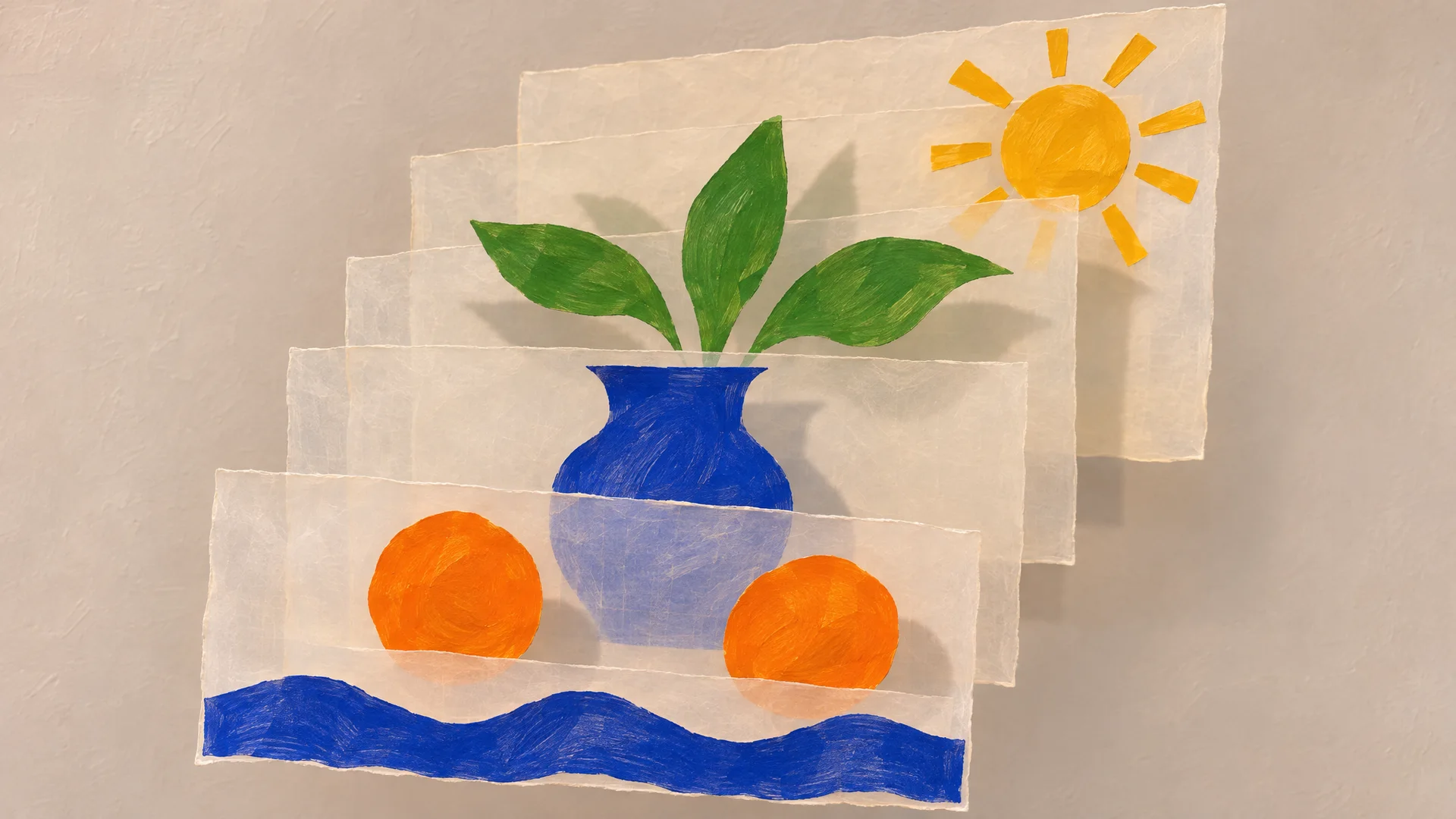
Here is a cut-paper still life we made in Ainex: a blue vase, three leaves, two oranges and a sun. We liked it enough to want it as an animated card, with the sun rising and the leaves swaying. For that we needed each part on its own, and all we had was one flat picture.
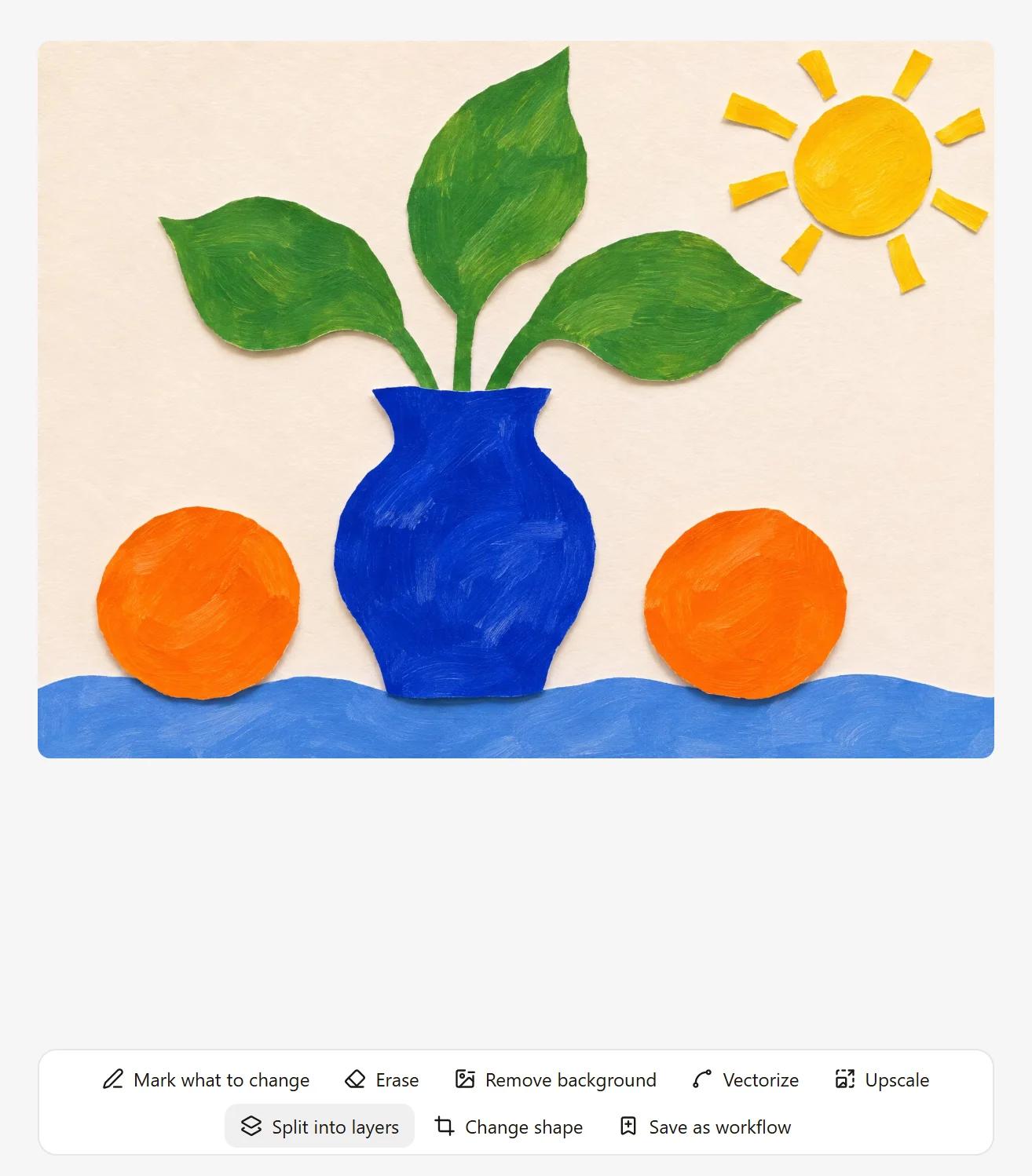
Cutting the shapes out by hand is an evening's work. Once the vase is lifted off, a vase-shaped hole remains where it stood.
Split it
With the picture open beside the chat, choose Split into layers. Ours took about three and a half minutes. The parts come back as separate pictures in the same conversation.
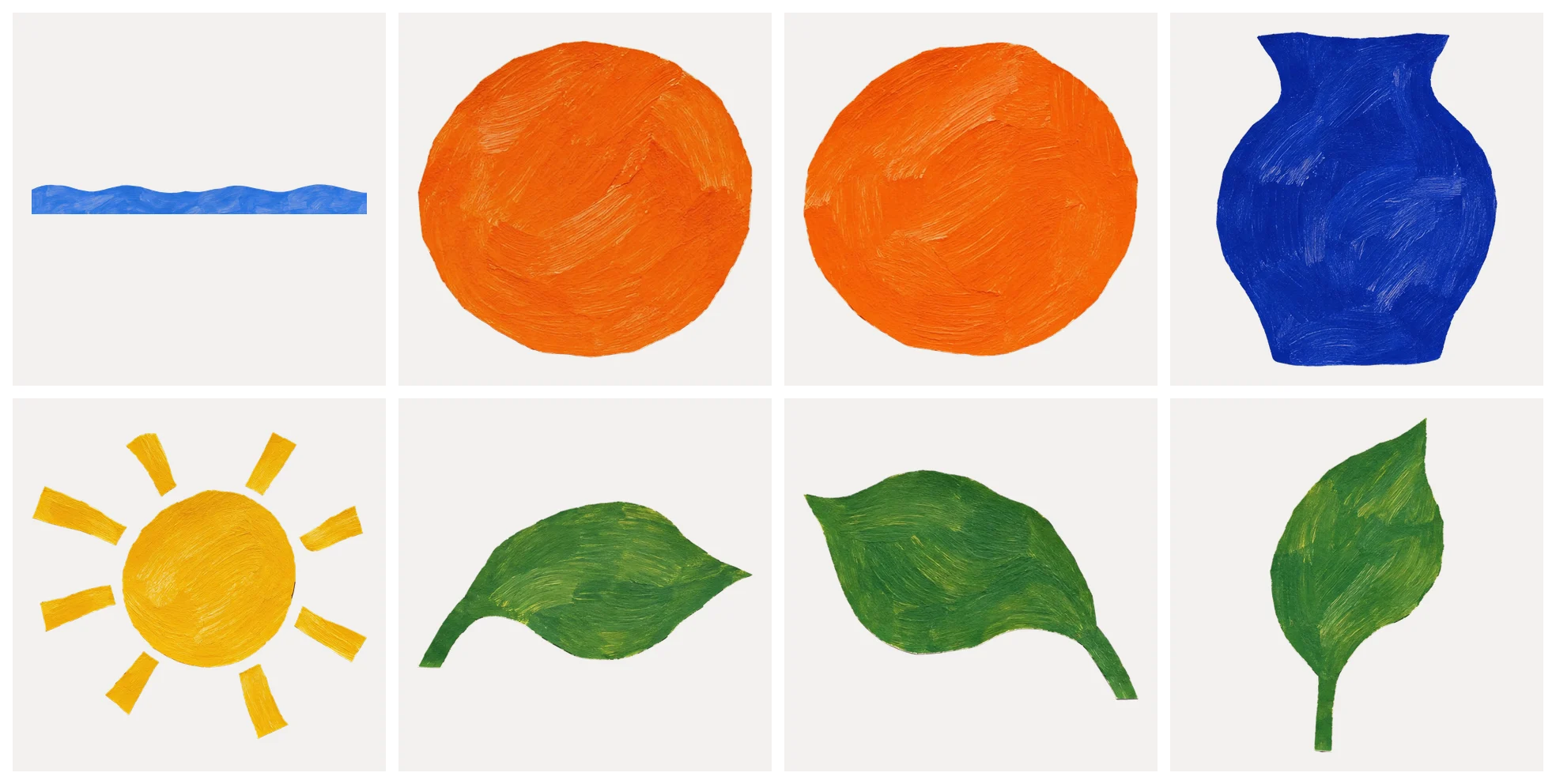
From our still life Ainex lifted eight parts: the vase, both oranges, the three leaves, the sun and the edge of the table. Each is a PNG with a transparent background, cut along the edge of the paper. A ninth file holds the background with all eight parts painted out, so nothing is missing where the vase used to be.
Carry on in Photoshop
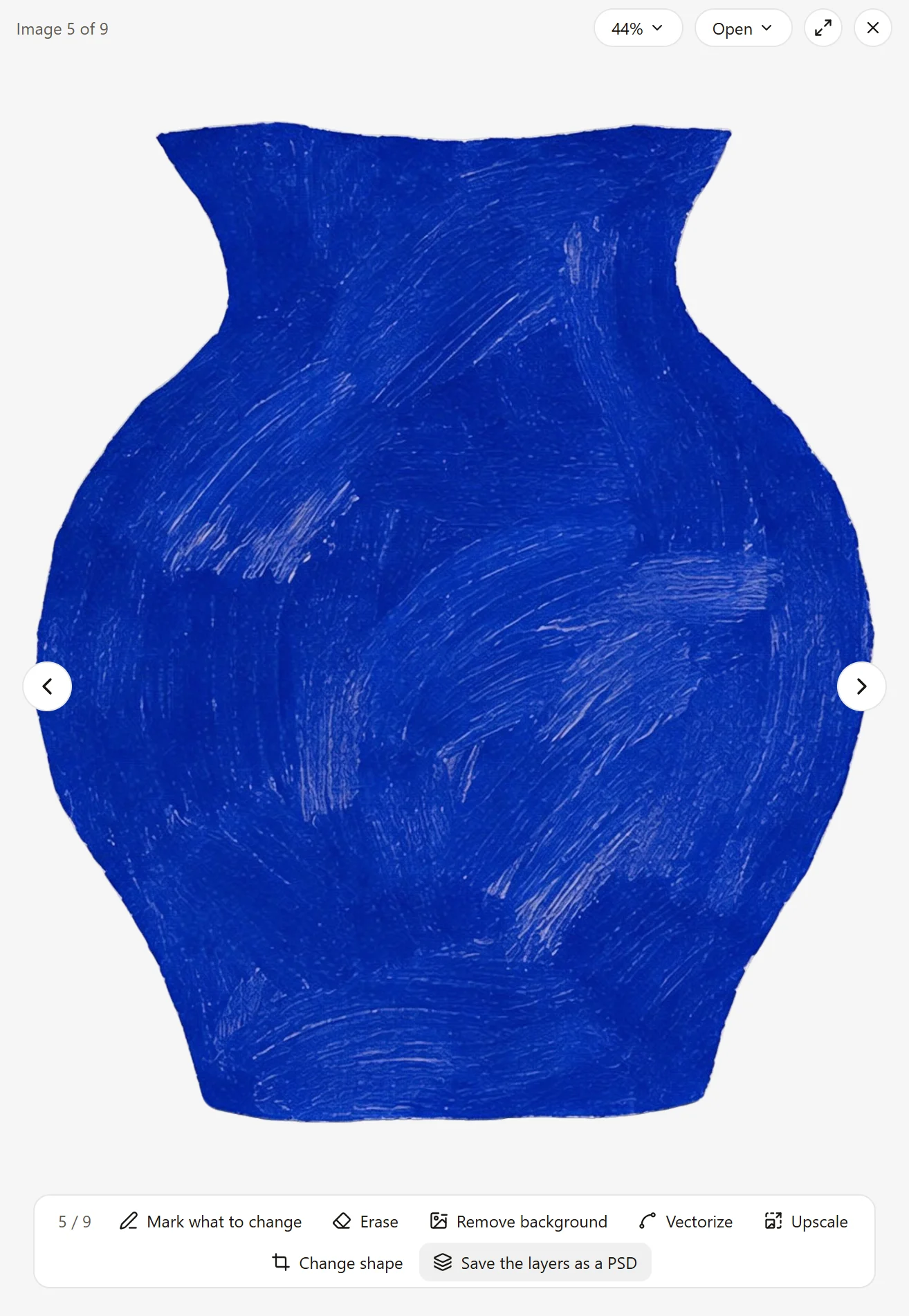
Ainex also saves a Photoshop file with every part on its own layer, in the place it came from, and names the file in its reply. Open it and start moving things. If you need the file again, open any of the parts beside the chat and choose Save the layers as a PSD.
What to expect
How many layers you get depends on the picture. A simple one like ours gives a handful; a busy poster can give more than a dozen. Pictures made of clear, separate things split best.
If you only need some of the parts, say which when you ask.
Try itSplit this picture into layers. I only need the sun and the leaves.
More from the blog
November 16, 2026
Change one part of a picture and keep the rest
When one part of a picture is wrong, you don't have to start over. Mark it, say what you want there, and Ainex changes that part.
November 16, 2026
Turn a picture into a vector you can edit
A logo that has to go on a pen and on a van can't be a grid of pixels. Ainex turns a picture into an SVG: shapes you can scale to any size and edit point by point.
November 16, 2026
One picture, every shape it needs to be
The square that works in a feed is wrong for a story and wrong for a banner. Ask Ainex for another shape and it fills in the new space to match, instead of cropping or stretching.